Best Cold Email Tools for Small Businesses on Gmail (2026)
Compare cold email tools for small businesses that send from Gmail: Makeinfo, YAMM, Mailmeteor, GMass, and when Instantly or Smartlead make more sense.
There is a huge difference between sending 30 personalized cold emails a day and running a 50,000-email outbound operation.
Yet search for cold email tools for small businesses and both paths lead to the same place. You land on sales engagement platforms with sequences, multiple mailboxes, warmup, deliverability dashboards, and dozens of other features.
For a freelancer, consultant, small agency, or founder, that’s often overkill. Sometimes you just need Google Sheets, Gmail, a mail merge, and a simple follow-up.
This guide helps you pick the right level of tool for how much you actually send. It compares four Gmail-based tools and then explains when a dedicated platform is the better call.
1. What kind of cold email are you sending?
Start with volume. It decides almost everything else. If you’re not sure of yours, the cold email volume calculator works it out from how many meetings you want.
| Daily volume | What you need |
|---|---|
| 10–30 emails/day | Basic mail merge from a spreadsheet |
| 30–100 emails/day | Mail merge plus scheduled follow-ups |
| Hundreds/day | More automation: sequences, reply detection, tracking |
| Thousands/day | Dedicated infrastructure: many inboxes, warmup, rotation |
Most small businesses sit in the first two rows. A consultant reaching out to 20 local firms a week is in row one. A two-person agency running a monthly campaign to 300 prospects lands in row two.
The mistake we see most often is buying for row four while living in row one. You pay for inbox rotation you never use. Worse, you spend a weekend configuring DNS records for secondary domains you don’t need yet.
2. What to look for in Gmail cold email tools for small businesses
Before comparing names, decide which of these matter to you.
- Gmail integration. Does it send from your real Gmail account, so replies land in your normal inbox?
- Google Sheets support. Can you keep your prospect list in a sheet you already maintain?
- Personalization. Can you insert
{{firstName}},{{company}}, or any column into the subject and body? - Follow-ups. Can it send a second email automatically a few days later?
- Scheduling. Can you start a campaign at 9 a.m. in your prospect’s time zone?
- Tracking. Do you need open and click data, or are replies enough?
- Permissions. What access does it ask for? Reading your whole inbox is a bigger ask than sending on your behalf.
- Ease of setup. Can you send your first campaign in ten minutes?
- Price. Does the free plan cover your real volume?
Permissions deserve more attention than they get. Some tools need to read your mailbox to detect replies. That’s useful, but it’s also a lot of trust to hand to an add-on. Check the Google consent screen before you click Allow.
3. Best Gmail cold email tools
Here are four tools that work with Gmail and Google Sheets. They’re listed from lightest to heaviest, not by “best.” Pricing and free limits change often, so confirm them on each vendor’s site.
Makeinfo Simple Mail Merge
A Google Sheets add-on that sends personalized emails through your own Gmail. You write the email in a compose window, insert columns as merge fields, and send to every row.
- Good for: small, personal campaigns from a sheet you already keep
- Follow-ups: yes, scheduled follow-up steps
- Tracking: no open or click tracking for now
- Free plan: 50 emails a day
- Permissions: send-only Gmail access, no inbox reading
YAMM (Yet Another Mail Merge)
YAMM is one of the oldest Gmail mail merge add-ons for Google Sheets. You draft the email in Gmail, then run the merge from the sheet.
- Good for: people who want a familiar, proven mail merge
- Follow-ups: limited compared with sequence tools
- Tracking: opens, clicks, and bounces written back to the sheet
- Free plan: a small daily quota, with paid plans for more
Mailmeteor
Mailmeteor is a Sheets add-on plus a web app, with a strong focus on simplicity and privacy.
- Good for: small teams that want mail merge with some automation
- Follow-ups: yes, on paid plans
- Tracking: opens, clicks, and replies
- Free plan: a limited daily quota
GMass
GMass is a Chrome extension that lives inside Gmail. It can pull recipients from a Google Sheet and runs multi-step campaigns.
- Good for: power users who want sequences without leaving Gmail
- Follow-ups: multi-stage, with stop-on-reply
- Tracking: opens, clicks, replies, and campaign reports
- Free plan: a trial with a daily cap
4. When should you use Instantly or Smartlead instead?
Gmail-based tools have a ceiling, and that’s by design. Google limits personal Gmail to about 500 recipients a day and Workspace accounts to about 2,000. You can read the exact rules in Google’s Gmail sending limits, or our plain-English Gmail sending limits guide.
Dedicated platforms like Instantly and Smartlead exist for a different job. They connect many mailboxes, rotate sends across them, and warm up new domains. They also give you deliverability tooling and a shared inbox for replies.
Choose one of these if:
- You send hundreds or thousands of cold emails every day
- You run outreach across several domains and inboxes
- An SDR team needs one place to manage replies
- Deliverability is a full-time concern, not an occasional worry
They’re the right answer for a real outbound program. However, for a founder sending 25 emails a day, they add monthly cost and setup that won’t pay off. If you’re stuck between the two, our guide on why cold emails fail even with good copy covers what usually goes wrong first.
5. Makeinfo Simple Mail Merge
Makeinfo takes the lightweight approach. Keep your prospect list in Google Sheets. Write your email once. Send personalized messages through your own Gmail account, and optionally add a follow-up.
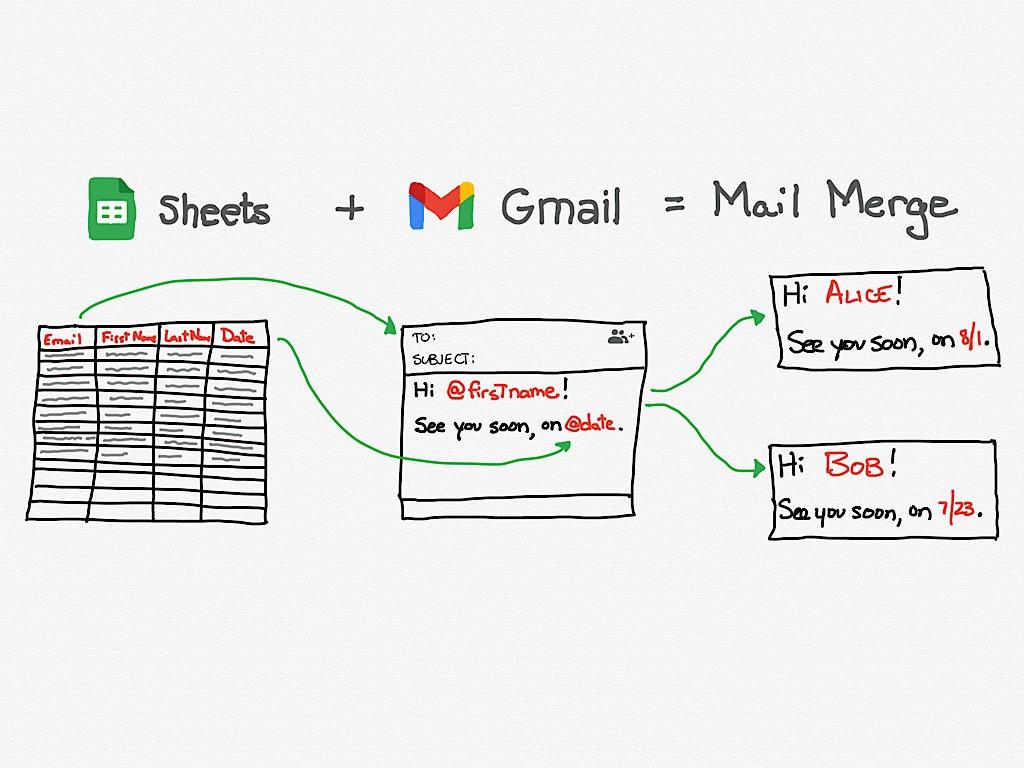
That’s the whole idea in the image above. Each column in your sheet becomes a field. Alice gets “Hi Alice,” Bob gets “Hi Bob,” and every email goes out from your address.
A few honest notes so you know what you’re getting:
- No tracking yet. It doesn’t record opens or clicks today. If you want read receipts, our free Email Tracker for Gmail covers individual emails.
- Follow-ups don’t detect replies. Because the add-on doesn’t read your inbox, check your replies before a follow-up step goes out. You can skip or stop a step from the sidebar.
- Your Gmail limits still apply. The add-on sends through Gmail, so Google’s daily cap is the real ceiling on paid plans.
We made that permissions trade-off on purpose. Asking only to send, and never to read your mail, keeps the Google consent screen short. It also means less risk for you.
6. A simple Gmail cold email workflow
Here is the Sheet → Gmail → follow-up workflow we recommend for 10 to 100 emails a day.
Step 1: Build the list in Google Sheets
Create one row per prospect. Use clear column headers like Email, First Name, Company, and Note. The Note column is where real personalization lives: a recent post, a hiring signal, or a shared contact.
Most lists start with gaps. You have a company name and domain, but no country, no address, and no idea who they compete with. SuperEnrich fills those columns in bulk inside the same sheet. It tries several data providers in order until one returns a result, and you bring your own API keys. It’s in early access now.
Those extra columns pay off later. A Country column lets you schedule sends for the right time zone. A Competitors column gives you a natural opening line.
Step 2: Clean the list before you send
Bounces hurt your sender reputation fast. Remove duplicates, fix obvious typos, and verify addresses first. Our guide to cleaning a lead list before cold emailing walks through it. The Smart Email Verifier add-on can check every address without leaving the sheet.
Step 3: Write one short email
Keep it under 120 words. Put a merge field in the subject or first line, and reference the Note column in the body. Ask one easy question instead of asking for a 30-minute call.
Step 4: Send a test to yourself
Check that every field filled in. An email that starts with “Hi {{First Name}}” is worse than no email at all. To check every row at once, paste your sheet into the free mail merge previewer.
Step 5: Send in small batches
Start with 20 to 30 a day, even if your limit is higher. As a result, you’ll catch problems early and keep your account in good standing. Google’s email sender guidelines explain what keeps you out of spam, such as low complaint rates and an easy way to opt out.
Step 6: Add one follow-up
Schedule a short follow-up three to five days later. Two lines is plenty: a quick bump plus one new reason to reply. Before it sends, remove anyone who already answered.
Step 7: Log replies in the sheet
Add a Status column and mark each reply as interested, not now, or no. After a few campaigns, that column tells you which messages actually work.
If you’d rather script this yourself, see how to send emails from Google Sheets with Apps Script.
7. Final decision table
There’s no single winner here. The right cold email tool depends on what you’re trying to do.
| If you need… | Consider |
|---|---|
| Simple mail merge | Makeinfo / YAMM |
| Mail merge + automation | Mailmeteor |
| Advanced Gmail campaigns | GMass |
| High-volume outbound infrastructure | Instantly / Smartlead |
If you send dozens of emails rather than thousands, start small. A clean Google Sheet, a short personal email, and one follow-up will take you further than a platform you only half use. When your volume genuinely outgrows Gmail, that’s the moment to move up a tier.