Deadline Reminder Emails to Task Owners in Google Sheets
Email the right person when a task is 2 days from its deadline: look up owners in a contact table, avoid duplicate sends, and run it on a daily trigger.
A question on r/GoogleAppsScript caught our eye this week because it’s one we see in some form every month. Someone had a Google Sheet with two tables. The first listed tasks, the person in charge of each, and how many days were left, written as 2d, 4d and so on. The second was a small directory mapping each person’s name to their email address.
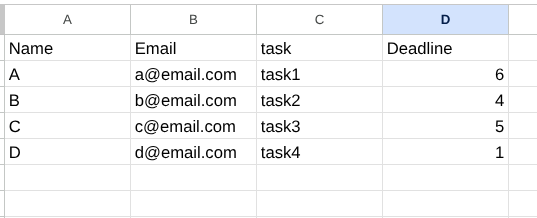
They wanted a script that would notice when a task hit two days or fewer, find the owner’s email in the second table, and send them a reminder.
It’s a reasonable ask, and the script itself is short. But the sheet as described has two problems that would make any script built on it fragile, and the replies in the thread picked up on both. Here’s the fixed version, with code you can paste in.
Problem 1: “2d” is a value someone has to keep updating
A cell that says 2d is only true on one day. Tomorrow it should say 1d, and unless a person or another script rewrites every row each morning, it won’t. The reminder script then reads stale numbers and either misses deadlines or fires on the wrong day.
The fix is to store the thing that doesn’t change, the due date, and let the days remaining be calculated from it.
| Task | Owner | Due Date | Reminder Sent | Days Left |
|---|---|---|---|---|
| Q4 pricing page | Priya | 2026-10-08 | ☐ | =IF(C2="","",C2-TODAY()) |
| Partner deck | Tom | 2026-10-14 | ☐ | =IF(C3="","",C3-TODAY()) |
The Days Left column is still there for humans to read, but it’s a formula now, so it’s always correct. Format it as a number. If you like the 2d look, use =IF(C2="","",C2-TODAY()&"d") instead. The script won’t read this column at all; it does its own maths from the due date.
Put this table on a tab called Tasks. The directory goes on a tab called Team, with names in column A and emails in column B. Keep the names spelled exactly as they appear in the Owner column. The script ignores case and stray spaces, but “Tom” and “Thomas” are still two different people to it.
Problem 2: a daily check will spam people
Once the script runs every morning, a task that’s two days out triggers an email. The next day it’s one day out, which is still “two days or fewer”, so it triggers another. Then another on the due date, and one every day after that until someone closes the task.
Three emails about the same task and people start filtering them. The Reminder Sent checkbox stops this. The script skips any row where it’s ticked, and ticks it the moment it sends. One task, one reminder.
If a deadline gets pushed back, untick the box and the new date gets its own reminder.
The script
Open the sheet, go to Extensions → Apps Script, delete whatever is in the editor, and paste this:
const TASKS_SHEET = 'Tasks';
const TEAM_SHEET = 'Team';
const DAYS_BEFORE = 2;      // remind when this many days or fewer remain
const SENT_COL = 4;         // column D: Reminder Sent checkbox
const NOTE_COL = 6;         // column F: problems the script wants you to see

function sendDeadlineReminders() {
  const ss = SpreadsheetApp.getActiveSpreadsheet();
  const tasks = ss.getSheetByName(TASKS_SHEET);
  const team = ss.getSheetByName(TEAM_SHEET);

  // Turn the Team table into a name -> email lookup
  const emailFor = {};
  team.getDataRange().getValues().slice(1).forEach(([name, email]) => {
    if (name && email) {
      emailFor[String(name).trim().toLowerCase()] = String(email).trim();
    }
  });

  const today = new Date();
  today.setHours(0, 0, 0, 0);
  const rows = tasks.getDataRange().getValues();

  for (let i = 1; i < rows.length; i++) {
    const [task, owner, due, sent] = rows[i];
    if (!task || !(due instanceof Date) || sent === true) continue;

    const dueDay = new Date(due);
    dueDay.setHours(0, 0, 0, 0);
    const daysLeft = Math.round((dueDay - today) / 86400000);
    if (daysLeft > DAYS_BEFORE) continue;

    const email = emailFor[String(owner).trim().toLowerCase()];
    if (!email) {
      tasks.getRange(i + 1, NOTE_COL).setValue(`No email found for "${owner}"`);
      continue;
    }

    const when =
      daysLeft < 0 ? `${-daysLeft} day(s) overdue` :
      daysLeft === 0 ? 'due today' :
      `due in ${daysLeft} day(s)`;

    MailApp.sendEmail({
      to: email,
      subject: `Reminder: ${task} is ${when}`,
      body:
        `Hi ${owner},\n\n` +
        `"${task}" is ${when} (${dueDay.toDateString()}).\n\n` +
        `Sheet: ${ss.getUrl()}`,
    });

    tasks.getRange(i + 1, SENT_COL).setValue(true);
    tasks.getRange(i + 1, NOTE_COL).clearContent();
  }
}
A few things it does that the naive version doesn’t:
- Reads the directory once. It builds the name-to-email map up front instead of looking it up row by row, which keeps it fast as the task list grows.
- Flags missing owners instead of failing silently. If someone is assigned a task but isn’t in the Team tab, column F says so. Without this, a typo in a name means that person never hears about their deadline and nobody notices.
- Skips rows without a real date. If someone types “next Friday” into the Due Date column, that row is ignored rather than crashing the run.
- Handles overdue tasks it hasn’t reminded about yet. If a task was added after its deadline had already passed, it still gets one email, worded as overdue.
Click Run once. Google will ask you to authorise the script to read the sheet and send email as you. That’s expected; the emails go out from your own Gmail account.
Problem 3: make it run on its own
The original poster’s instinct, and a common one, was to run the check when the sheet is edited. That doesn’t work for deadlines. A task gets closer to its due date whether or not anyone touches the spreadsheet, and an onEdit trigger only fires when someone does.
What you want is a time-driven trigger: run once a day, at a fixed hour, no matter what. You can set one up through the clock icon in the Apps Script sidebar, or paste this below the main function and run it once:
function installDailyTrigger() {
  // Remove any old copy first so you don't end up with duplicates
  ScriptApp.getProjectTriggers()
    .filter(t => t.getHandlerFunction() === 'sendDeadlineReminders')
    .forEach(t => ScriptApp.deleteTrigger(t));

  ScriptApp.newTrigger('sendDeadlineReminders')
    .timeBased()
    .everyDays(1)
    .atHour(8)
    .create();
}
The hour uses the script’s time zone, which you can check under Project Settings. Google runs it somewhere within that hour, not at exactly 8:00, which is fine for a deadline reminder.
Limits worth knowing before you rely on it
- Daily email quota. Apps Script can send roughly 100 emails a day from a personal Gmail account and 1,500 from a Google Workspace account (see Google’s Apps Script quotas). A small team’s task sheet won’t come close, but a sheet with hundreds of rows and several reminder stages could.
- One email per task, not per person. If Priya has five tasks due this week, she gets five emails. Grouping them into a single daily summary per owner is a straightforward change: collect rows into a map keyed by email, then send once per key.
- Triggers belong to whoever created them. If that person leaves the company and their account is suspended, the reminders stop. Have a shared or long-lived account own the trigger.
- The sheet is the source of truth. If people track tasks somewhere else and only update the sheet occasionally, the reminders will be as stale as the sheet.
If you don’t want to maintain a script
The thread also mentioned that not every team has someone who wants to own Apps Script code, and that’s a fair point. Your options without writing code:
- A Google Workspace add-on that sends alerts based on cell values, set up through a sidebar.
- Zapier or Make, watching the sheet on a schedule and sending email through their own connectors. This is the most flexible option and the most expensive one at volume.
- A ready-made sheet with the script already in it. Our free Deadline Email Alerts template has the due-date column, the sent-status column and the daily trigger setup done for you.
We compared these three approaches in more detail in Automatic Deadline Reminder Emails from Google Sheets.
When the sheet outgrows itself
Deadline reminders are usually the first piece of automation a team bolts onto a spreadsheet. Then come escalations to a manager when something goes overdue, a Slack message instead of email, a weekly digest for the team lead, and a second tab for a different project with slightly different rules. Each one is a few more lines of script, and after a year nobody remembers which function does what.
That’s normally the point where it’s worth stepping back and deciding what the sheet should be: a lightweight tool with a proper setup panel, a small internal app, or a move into a task tracker the team already pays for, with the reminders rebuilt there. We build this kind of internal tooling on Google Workspace, Jira and Slack, so if you’re at that point, tell us what you’re working with and we’ll tell you honestly whether it’s worth building.
For most teams, though, the script above is all you need. Store real dates, tick a box when you’ve sent the reminder, and let a daily trigger do the checking.